
SYSTEM REQUIREMENTS FOR THIS PLATFORM
Windows 7 and above, running Chrome, Firefox or Edge.
MacOS 10.9 or later, running Chrome, Firefox, or Safari
Phones & Tablets are not recommended in using this website.
Please note, additional devices may successfully connect, but are not officially supported.
What if I have problems joining?
Please reach out to us by email or call (212) 305-1472.
FREQUENTLY ASKED QUESTIONS
When it's time to attend my Class Gathering, the Scientific Symposium, or the Alumni Day Program - Where do I go?
We've taken the guess work out of 'Where do I go?' by consolidating everything into the 'AGENDA' tab at the top of this page. When you navigate to the 'AGENDA' tab, you'll see a full list of all of the Virtual Events for this year's reunion.
When can I enter the Virtual Event?
Two minutes before your Class Gathering on Zoom, you'll be let into the Zoom Meeting by your host.
For Thursday's Scientific Session, and Friday's Alumni Day Program, a button will appear that says 'Join Broadcast'
Can I arrive Early to check my webcam and microphone?
Each Virtual Event allows individuals to 'arrive' up to two minutes before each event's stated start time. You will not have the ability to enter the Virtual Event before that time.
Which browser should I be using? Google Chrome? Firefox? Safari?
All browsers are supported for viewing the Scientific Symposium, as well as the Alumni Day Program
We are using Zoom for all Class Gatherings, so be sure you have the Zoom Desktop Client downloaded and installed on your device in order to gain access. You may Download Zoom Here
Which Events Can I Attend?
In order to attend Individual Class Gatherings, you must be a registered alumni of that class year.
For Instance: If you're an alumni of the Class of 1951, you will only be able to attend the Class of 1951 Virtual Class Gathering, as well as the Scientific Symposium and the Alumni Day Program. You will not be able to enter any of the other Virtual Class Gatherings.
All registered guests may attend the Scientific Symposium (Thursday, April 22, 2021 - 4:00P - 5:00P EDT), and the Alumni Day Program (Friday, April 23, 2021 - 4:00P - 5:00P EDT).
Where are the Zoom links? I didn't receive anything in my email.
The best part about having all the events integrated into the Virtual Alumni Reunion Website? You'll never have to hunt your email for links. In fact, all you need is your email address to log in and attend virtual events. All links to events are included in the 'AGENDA' tab, at the top of each page on this website.
What is the Community?
The Community is an online forum where you can directly message any attendee of the VP&S Alumni Reunion. Every person who registers for reunion is automatically included in the Community. Feel free to complete your profile with a photo and bio and get connecting! If you log out of the VP&S reunion website, you may be prompted to re-join the community upon re-entry. No worries, you are still a member. You may need to re-enter and confirm your email address to regain access.
What happens if I log out and need to log back in?
Our site makes that easy. Simply re-enter the email address you used to join the site. You will then receive an email to confirm your identify. Once you do so you will be logged back in and ready to enjoy the alumni programming.
HOW DO I JOIN MY CLASS GATHERING?
1. On the Agenda page, select your session by clicking on the title of the Class Gathering.
2. You are required to 'Login' with the email address used to register your ticket. (If you are already logged in, you'll be taken to the Class Gathering Page automatically.
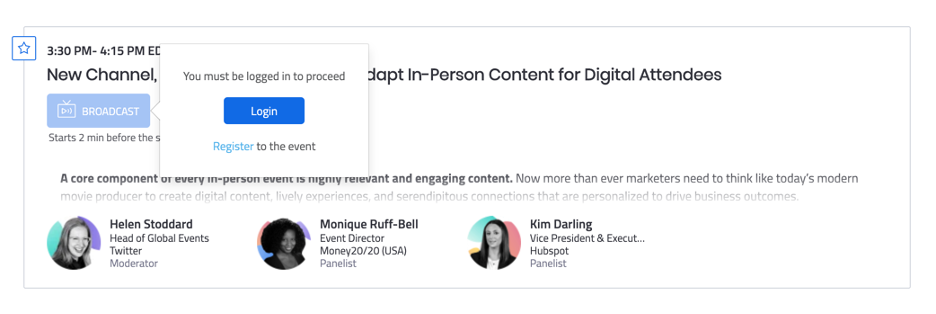
3. Once you click ‘Login’ a new page will open asking for the email address used to register your ticket.
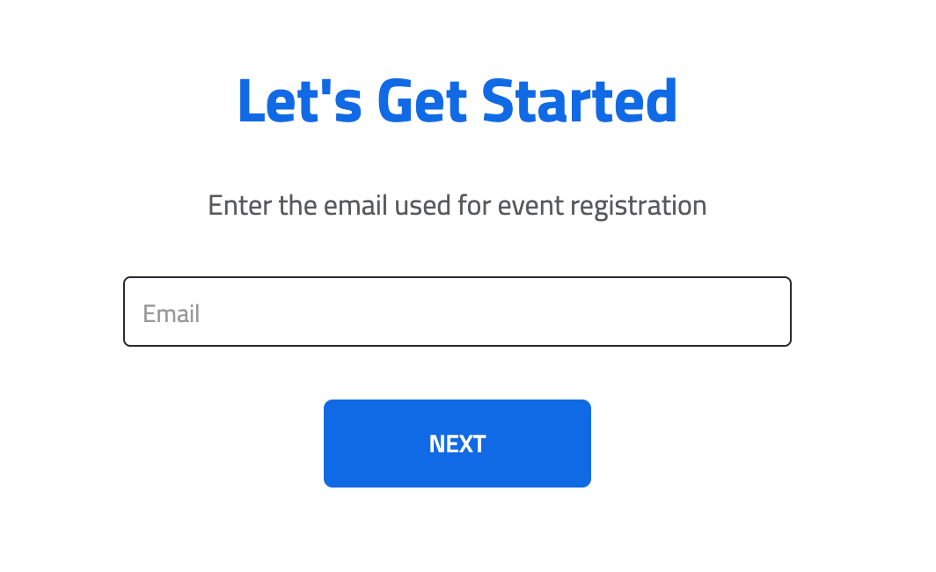
4. You will receive an email to confirm that you are indeed you.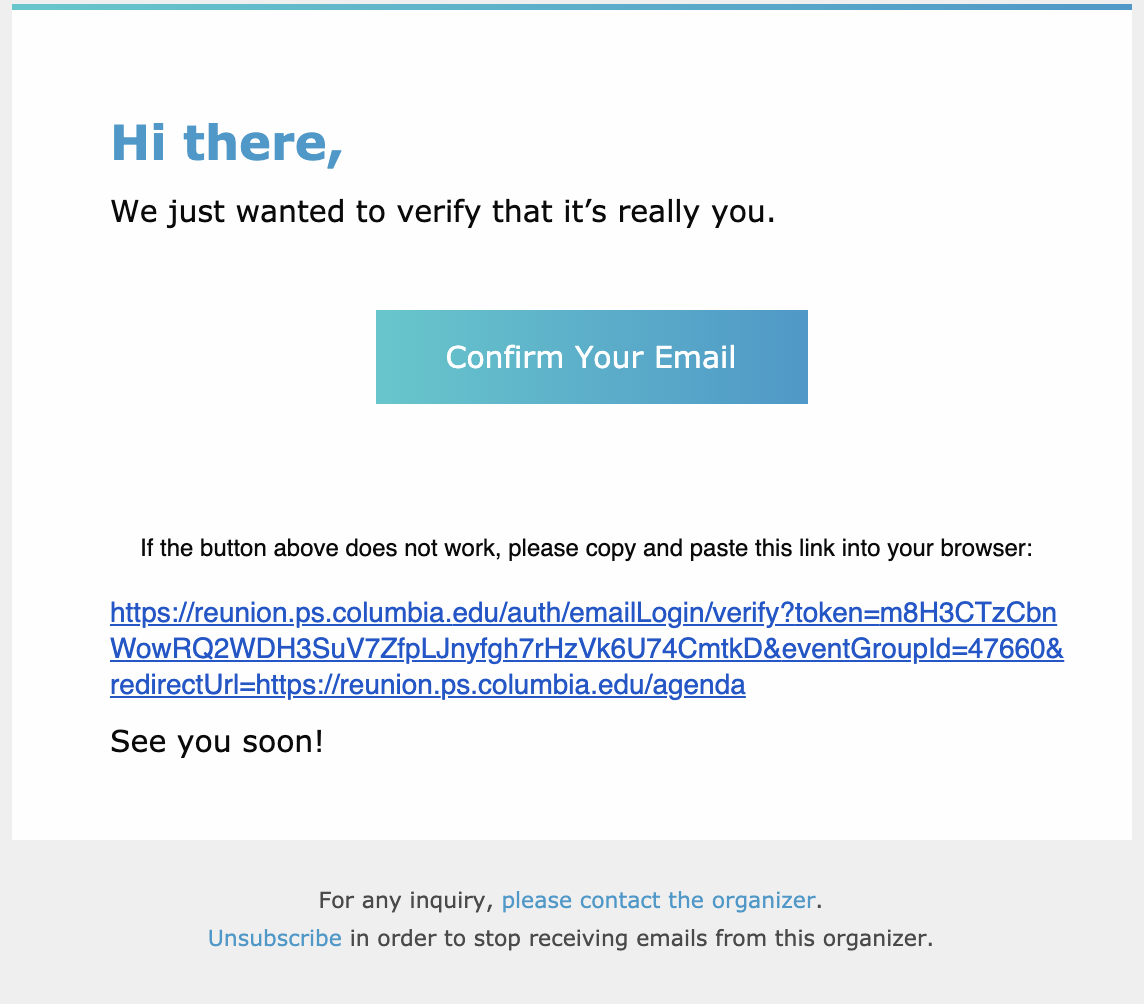
Important: You must click "Confirm Your Email" in order to be taken back to your browser to log in.
5. You will be taken back to the 'AGENDA' page where your event is ready for you.
Click on the Zoom Link, a new page will appear and ask if you'd like to join the Zoom Class Gathering within the browser or on your desktop client. Please select the option you prefer.
COOKIES & PRIVACY TROUBLESHOOTING
What If the OS Is Blocking Access To Your Webcam/Mic?
Your webcam/microphone might not be available for your browser to use due to privacy settings within your operating system (Windows, MacOS).
Windows 10
1. Click the Start Button (Windows icon) in bottom left of desktop
2. Select Settings
3. Click Privacy
4. Scroll through the list on the left to find Camera and select Camera
5. Under Allow Device To Access Camera click the Change button and make sure it is switched on
6. Make sure that under Allow Apps To Access Your Camera is turned on
7. Scroll through the list on the left to find Microphone and select Microphone
8. Under Allow Device To Access Microphone click the Change button & make sure it's switched on
9. Make sure that under Allow Apps To Access Your Microphone is turned on
10. Quit your browser and relaunch
MacOS
1. Go to System Preferences
2. Select Security & Privacy
3. Choose the Privacy tab
4. Scroll through the list on the left to find Camera and select Camera *MacOS Mojave
5. Check the box corresponding to your browser within the Allow the apps below to access your camera
6. Scroll through the list on the left to find Microphone and select Microphone *MacOS Mojave
7. Check the box corresponding to your browser within the Allow the apps below to access your microphone
8. You will be prompted to quit your browser. Choose Quit Now.
9. Relaunch your browser and join your Class Gathering to access to your webcam and mic.